With DISCO Briefs, you can send briefs to your DISCO Contacts and Mailing Lists of any size.
Note: This feature is only available for Supervisor accounts.

At a glance
In three easy steps, you can create, share, and review Briefs on DISCO!
Creating and publishing Briefs
Step 1: Create and publish a Brief
- On the left sidebar of your DISCO, under Tools, select Briefs.
- In the upper-right corner of the Briefs page, click the New brief button.
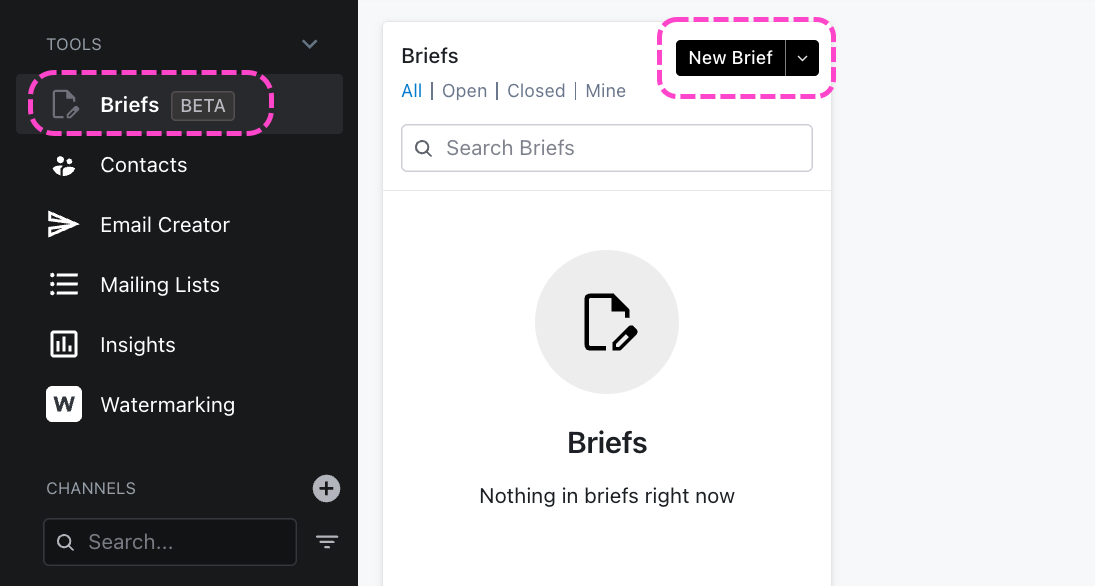
- On the Brief editor screen:
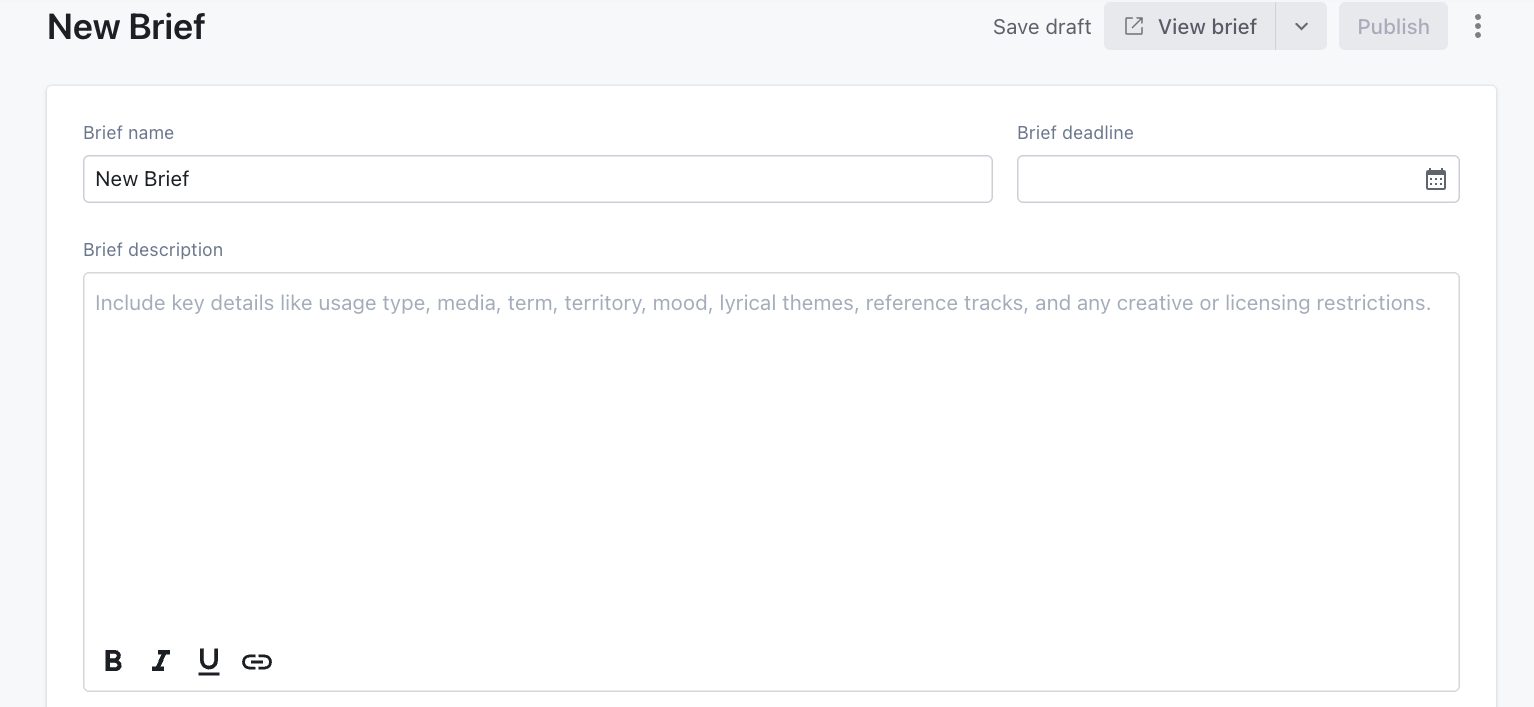
- Enter a Brief name - this name will be shown on the brief submission page
- Enter a Brief deadline - when this deadline passes, the brief will automatically close and brief recipients will no longer be able to view the brief or submit responses
- Enter a Brief description
Tip: Include key details like usage type, media, term, mood, lyrical themes, reference tracks, and any creative or licensing restrictions. - Optional: View a Preview of your draft.
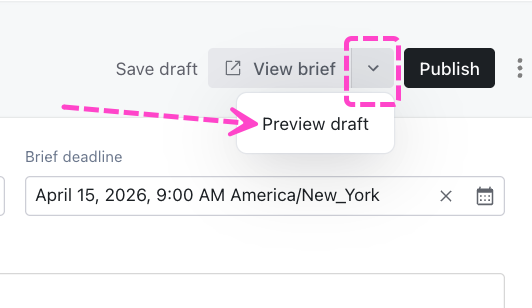
- When you're ready, click the Publish button.
Example:

Sharing Briefs
Step 2: Share your Brief with recipients
- From the Brief editor page, open the menu (⋮) in the top right corner and select Share.
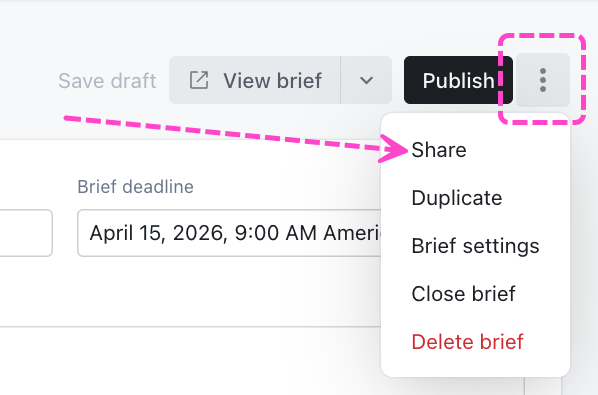
- From the Share brief menu:
- Add recipients – you can enter an email address, search for a DISCO contact or Mailing List, or add recipients from previously shared Briefs
- Set a Reply to address – this is where email replies to your Brief will be sent
- Set a Sender display name – this is the name that will appear in the recipient’s email
- Set a Subject – this is the email subject
- Add a Message (optional) – add a message to be included in the email
- Click Send to X recipients.
Example:

Reviewing Brief responses
Step 3: Review Brief responses
You can view responses to your brief by clicking the brief name in the Briefs column. Similar to Inboxes, you can view each playlist submitted, who it was submitted by, and any included messages.

To edit a Brief:
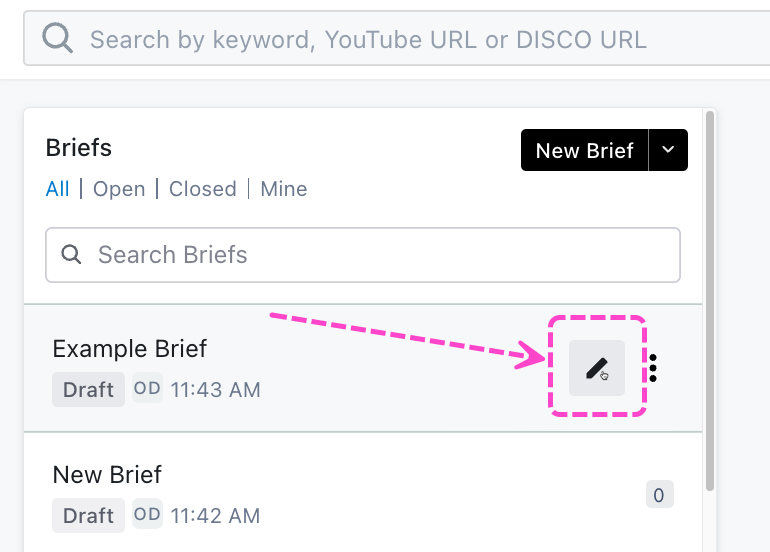
- Hover over the Brief name and click the Edit pencil.
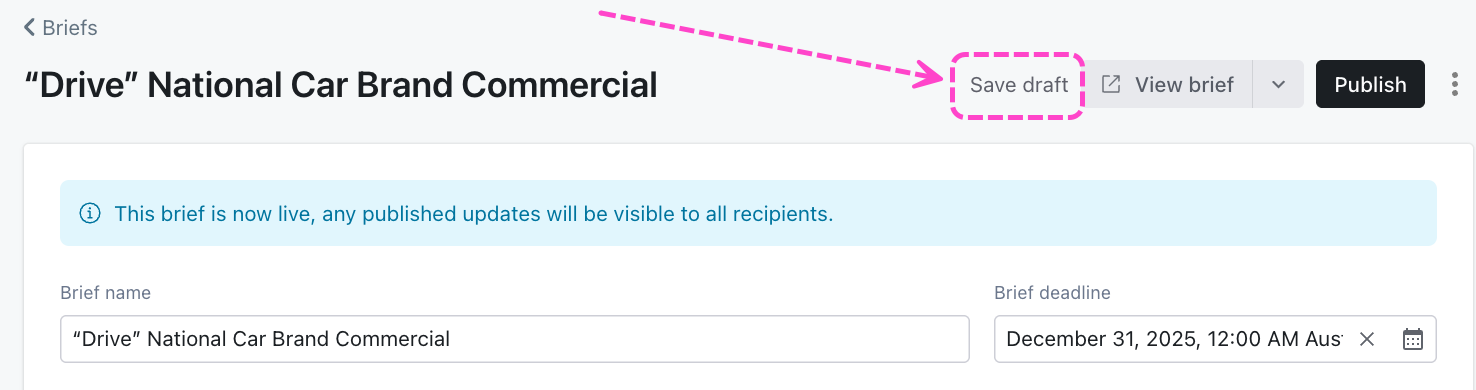
- From the Brief editor screen you can make any desired changes. As you make changes, you can save them in a draft state (not visible publicly) by clicking Save draft.
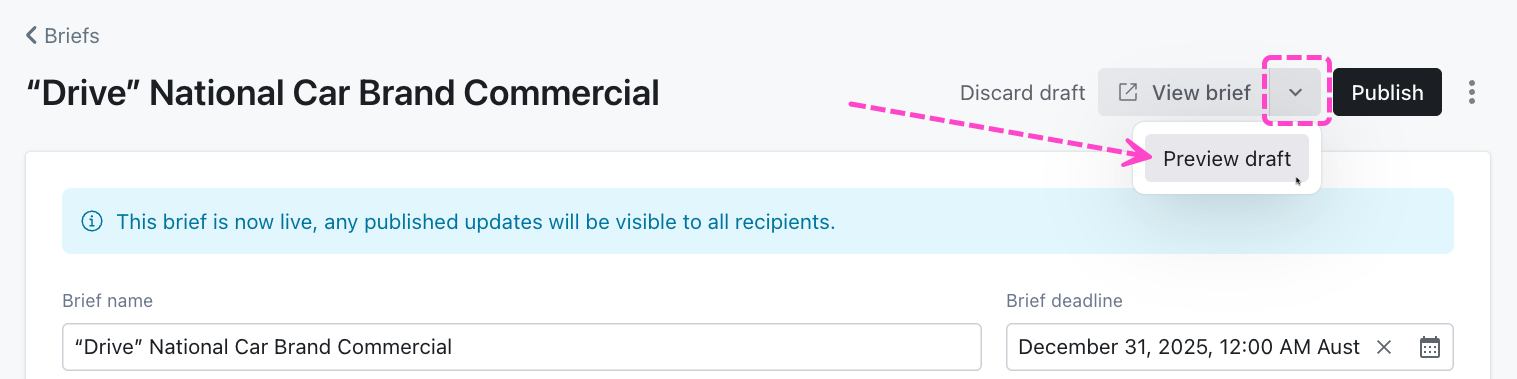
- To preview your changes, click the View brief dropdown and select Preview draft. A preview of the brief submission page will open in a new tab and will include your saved changes.
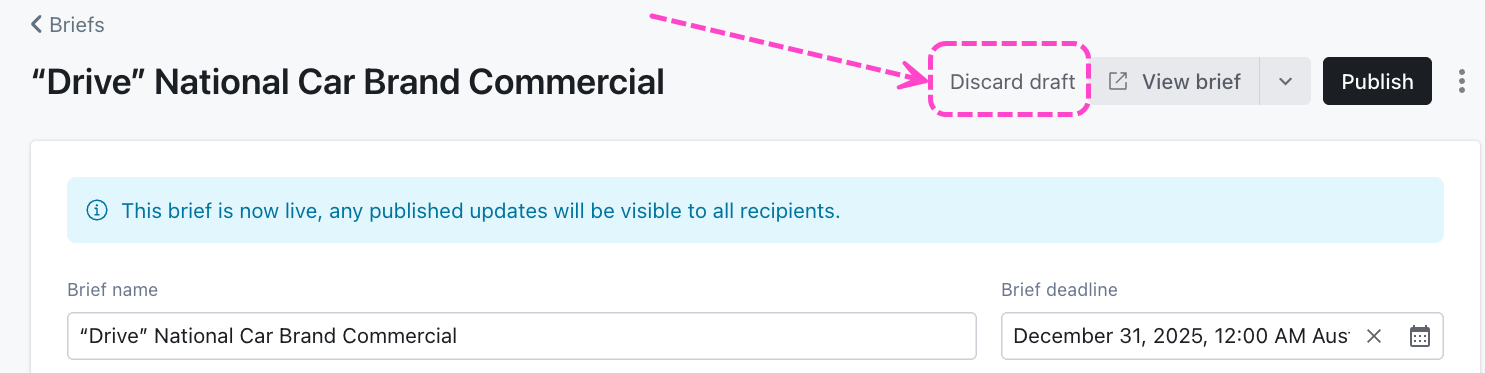
- To discard your changes, click Discard draft and your Brief will return back to its current published state.
- To publish your changes and make them live for all brief recipients, click the Publish button.
You can customize Brief settings and manage Brief access to see how your recipients are engaging with your Brief!
At a glance
With Brief settings, you can add manage Notifications and add Notes to your Brief.
With Brief access, you can see a list of everyone you've shared your Brief with, manage share links, and see if they've received and how they've engaged with your Brief.

Brief settings
Managing Brief Notifications
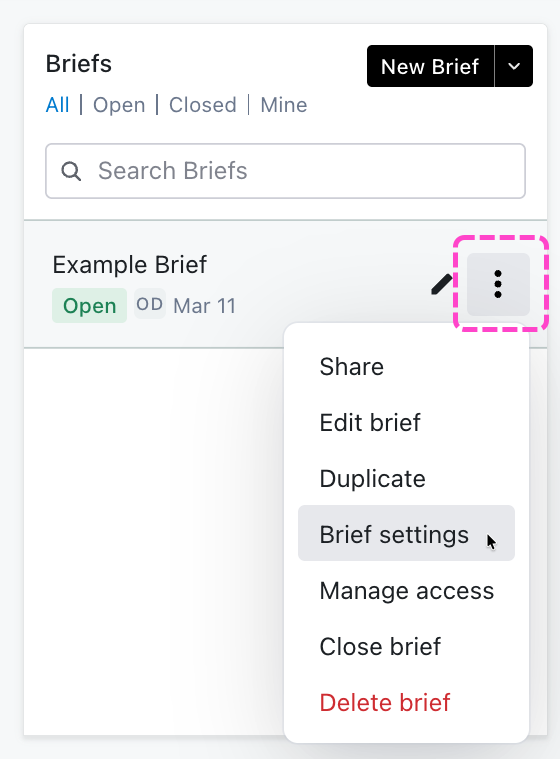
- On the left sidebar of your DISCO, under Tools, select Briefs.
- Open the menu (⋮) to the right of the desired Brief and select Brief settings.
- On the Brief Settings page, select the Notifications tab.
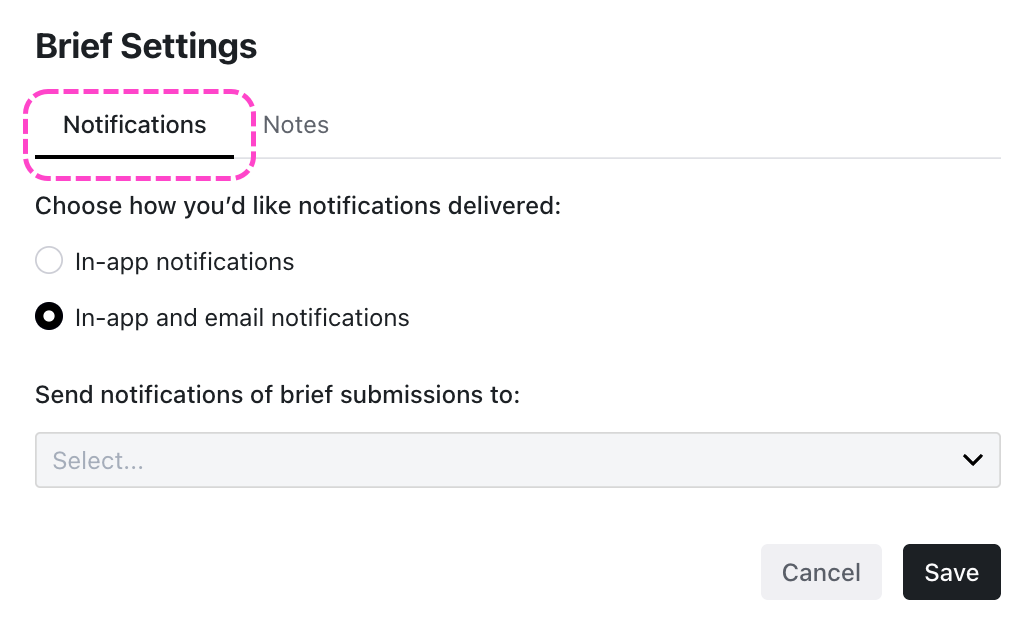
- You can choose in-app notifications or in-app and email notifications. You can also select which users in your DISCO should be notified from the drop-down.
- Click the Save button.
Add Notes to your Brief
- On the left sidebar of your DISCO, under Tools, select Briefs.
- Open the menu (⋮) to the right of the desired Brief and select Brief settings.
- On the Brief Settings page, select the Notes tab.
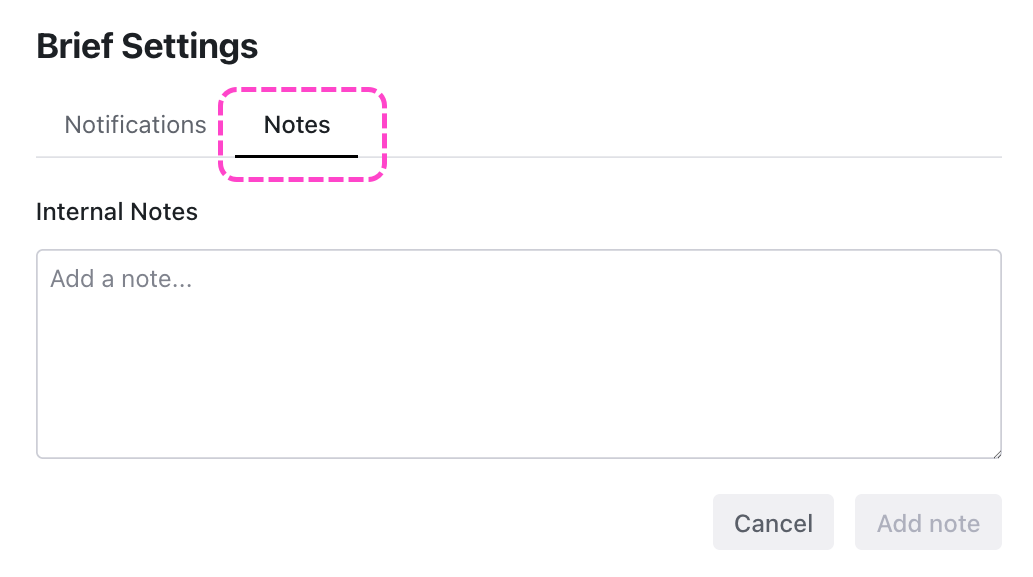
- Add an Internal Note and click the Add note button.
Managing Brief access
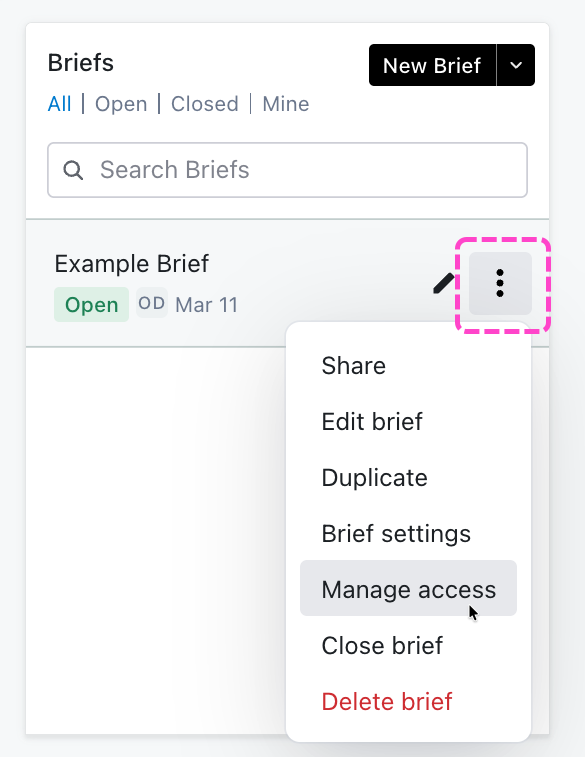
- On the left sidebar of your DISCO, under Tools, select Briefs.
- Open the menu (⋮) to the right of the desired Brief and select Manage access.
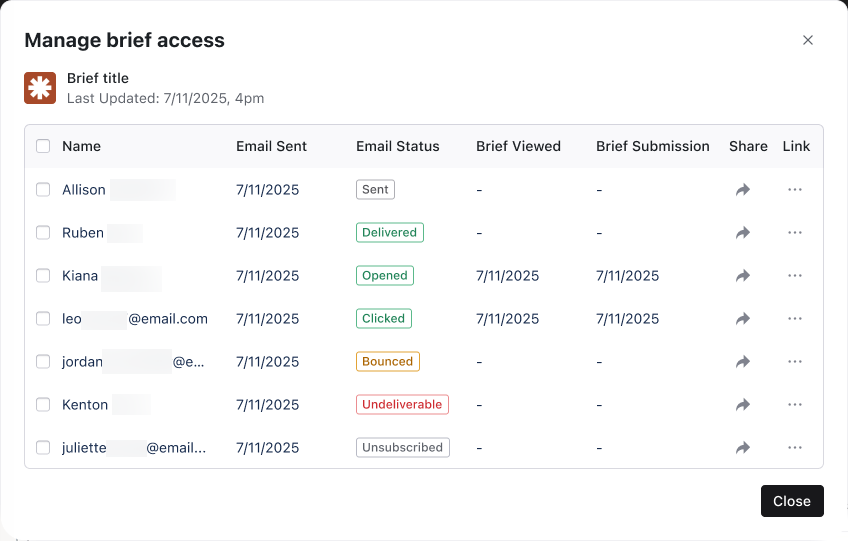
- Here you can see a table with an overview of your Brief recipients and their engagement activity.
Brief access overview
From the Manage brief access page, you can see a table with an overview of your Brief recipients and their engagement activity. You can also re-share the Brief with them using the buttons in the Share column, or copy the link from the Link column.
Other helpful information includes:
- Email Status - refer to the table in the next section below.
- Brief Viewed - the date the recipient viewed your Brief.
- Brief Submission - the date of the recipient's submission to your Brief.
Brief email statuses
| Email Status | Definition | More Details |
|---|---|---|
| Sent | The email has left our system and is on its way to the recipient's email server. | What this means: We've successfully handed off your email to the delivery network. The email is in transit but hasn't yet reached the recipient's inbox. What to do: If an email shows as Sent but not Delivered, wait 10-15 minutes before investigating. |
| Delivered | The email successfully reached the recipient's inbox. | What this means: The recipient's email server accepted the message and placed it in their inbox. However, this doesn't guarantee the recipient has seen or opened it yet. What to do: If a participant says they haven't received an email that shows as Delivered, ask them to check their spam or junk folder. |
| Opened | The recipient has opened the email. | What this means: We've detected that the email was opened by an actual person (not an automated bot or email scanner). This tracking works through a small invisible image in the email. Note that some email clients block tracking pixels, so an email might be opened without showing this status. |
| Clicked | The recipient clicked the brief link within the email. | What this means:The participant engaged with your email by clicking on the link to view the brief. We track clicks from actual people, filtering out automated bots and scanners. |
| Bounced | The email couldn't be delivered yet. We are automatically attempting to redeliver it. | What this means: The email encountered a temporary issue during delivery. This is typically called a "soft bounce" and can happen for reasons like:
If you see multiple Bounced emails for the same domain, there may be an issue with that email provider or organization's email settings. |
| Undeliverable | Delivery failed. This usually happens if the email address is invalid or the recipient's inbox is blocked. | What this means: The email could not be delivered after multiple retry attempts. This is typically called a "hard bounce" and happens when:
What to do: Verify the email address is correct. You may need to contact the participant through another channel to get their correct email address. |
| Unsubscribed | This recipient reported the email as spam and has been removed from your mailing list. | What this means: The recipient marked the email as spam or junk in their email client. When this happens, they are automatically removed from receiving future briefs to respect their preferences.
What to do: Respect the recipient's preferences and do not attempt to send them briefs. If you need to contact them about an active brief, reach out through a different communication method. |
Q: Can I edit my Brief after I have shared it?
Yes. You can make edits to your Brief at any time, just be sure to publish your changes. Once published, recipients will see the updated version.
Q: Can I add/remove recipients once a Brief has been sent?
Yes, you can add or remove recipients after a Brief has already been sent.
Jump to this section for instructions on adding recipients.
Q: Will recipients of a Brief be able to see who else it was shared with?
No, only the creator of the brief can see the full list of recipients.
